21 Free Online PDF Tools – Compress, Merge, Split, Convert, Edit & Protect PDFs
PDF has become the universal format for sharing documents across schools, offices, businesses, government organizations, and personal use. Whether you are sending a resume, submitting a project, sharing invoices, signing contracts, preparing reports, or archiving important documents, PDF files preserve formatting and display consistently across different devices and operating systems.
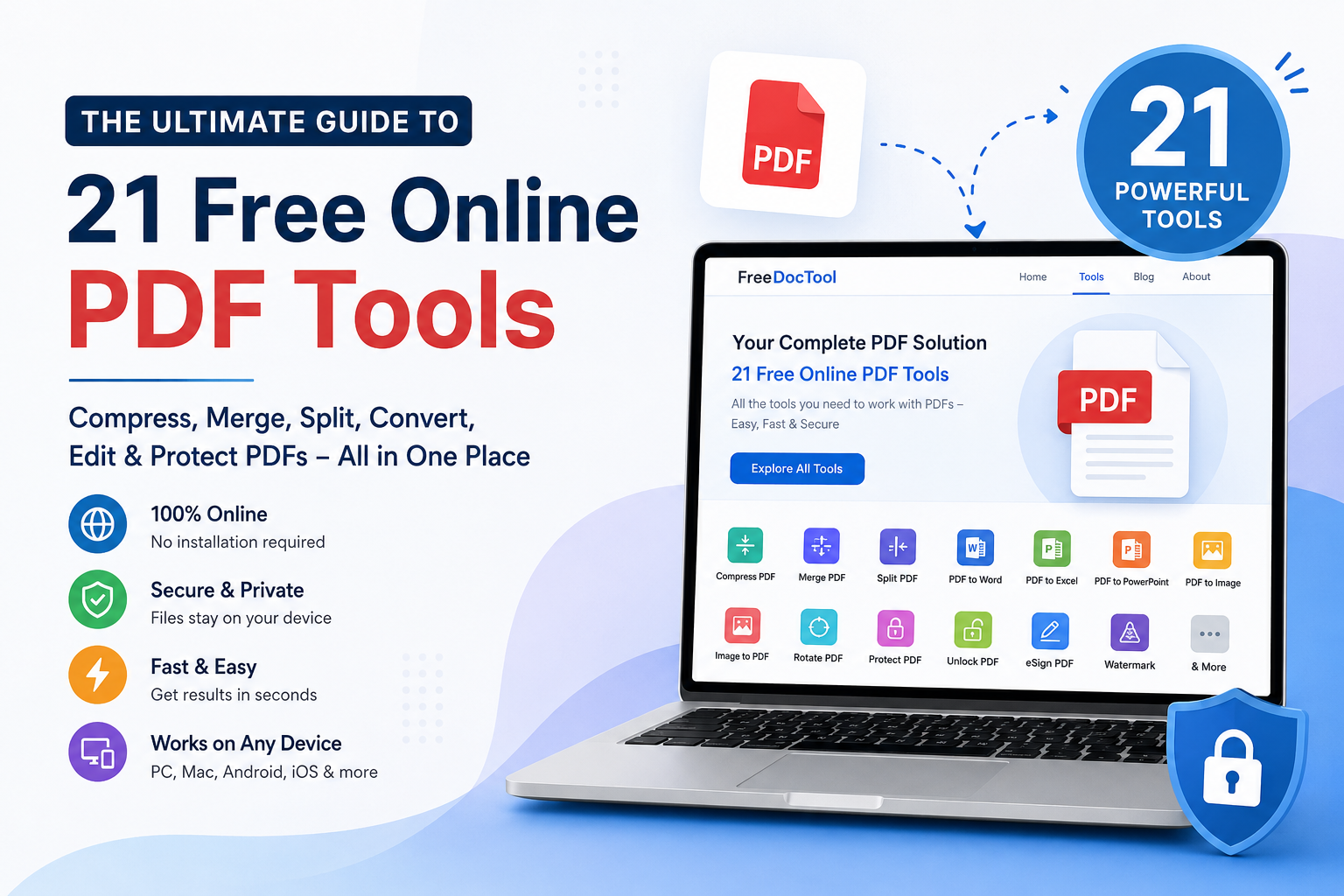
However, working with PDF files isn't always straightforward. You may need to reduce the file size before emailing it, merge multiple PDFs into one document, split large files into smaller sections, convert PDFs into editable Word or Excel files, protect sensitive information with a password, or sign contracts electronically. Traditionally, these tasks required expensive desktop software that consumed storage space, required installation, and often came with subscription fees.
Why Use Browser-Based PDF Tools?
Why Choose FreeDocTool?
There are hundreds of PDF websites on the internet, but FreeDocTool is designed with simplicity, speed, privacy, and accessibility in mind.
Some of the reasons users choose FreeDocTool include:
21 free PDF tools in one place
No software installation
No complicated registration process
Browser-based processing for supported tools
Modern and easy-to-use interface
Fast document processing
Works across desktop and mobile devices
Helpful for students, professionals, businesses, teachers, and freelancers
Growing collection of document and productivity tools
Instead of visiting multiple websites for different tasks, you can perform nearly every common PDF operation from one place.
Browse the full collection of PDF tools here:
Compress PDF
What is PDF Compression?
PDF compression is the process of reducing the file size of a PDF document while keeping its content readable. Large PDF files can be difficult to email, upload, or store. Compressing a PDF makes it smaller without requiring you to recreate the document.
People often search for this tool using terms such as:
PDF Compressor
Reduce PDF Size
Shrink PDF
Compress PDF Online
Free PDF Compressor
PDF Optimizer
Make PDF Smaller
Why Use a PDF Compressor?
Large files take longer to upload, download, and share. Many email providers and websites also impose file size limits. Compressing your PDF helps you:
Send documents through email more easily
Upload assignments faster
Meet application portal size limits
Save cloud storage space
Share files more quickly
Students submitting projects, HR teams sharing employee documents, architects exchanging blueprints, lawyers sending legal paperwork, and businesses distributing reports all benefit from smaller PDF files.
How the Compress PDF Tool Works?
Using the Compress PDF tool is simple:
Open the Compress PDF page.
Select your PDF document from your device.
Allow the browser to process the file.
The tool optimizes the PDF while preserving readability.
Preview the result if available.
Download the compressed PDF.
Because processing happens in your browser, your files remain on your own device whenever supported.
Tips for Best Results
Start with the original PDF whenever possible.
Avoid repeatedly compressing the same document.
Keep image-heavy documents at moderate compression to maintain clarity.
Verify readability before sharing important documents.
Create PDF
What is a PDF Creator?
A PDF creator converts documents such as Word files, Excel spreadsheets, PowerPoint presentations, or images into the widely accepted PDF format. PDFs preserve formatting, fonts, spacing, and layout, making them ideal for professional sharing.
People also search for:
Convert to PDF
PDF Creator
Make PDF Online
Save as PDF
Create PDF Online
Free PDF Maker
Why Create PDFs?
PDF files maintain a consistent appearance regardless of the operating system or software used to open them. This consistency is essential when sharing resumes, invoices, business proposals, reports, research papers, brochures, certificates, and official documents.
How the Create PDF Tool Works?
Creating a PDF with FreeDocTool is straightforward:
Open the Create PDF page.
Choose the supported document or image.
The browser converts the file into PDF format.
Review the generated PDF.
Download the finished document.
Common Uses
Resume creation
Business reports
School assignments
Project documentation
Printable forms
Client proposals
Product catalogs
Merge PDF
What is a PDF Merger?
A PDF merger combines two or more separate PDF files into one organized document. Instead of sending multiple files, you can share a single PDF containing everything in the correct order.
People commonly search for:
Merge PDF
Combine PDF
Join PDF Files
Merge PDF Online
PDF Combiner
Combine Documents
Why Merge PDFs?
Merging PDFs helps simplify document management. For example:
Combine multiple invoices into one file.
Merge book chapters into a single document.
Organize scanned pages.
Combine contracts and supporting documents.
Create one PDF portfolio.
Step-by-Step Guide
Open the Merge PDF tool.
Select multiple PDF files.
Arrange them in your preferred order.
Start the merge process.
Review the final document.
Download the merged PDF.
Best Practice
Before merging, arrange the files in the exact sequence you want. This saves time and reduces the need for later editing.
Comments