21 Free Online PDF Tools – Compress, Merge, Split, Convert, Edit & Protect PDFs All Tools & How to Use Guide
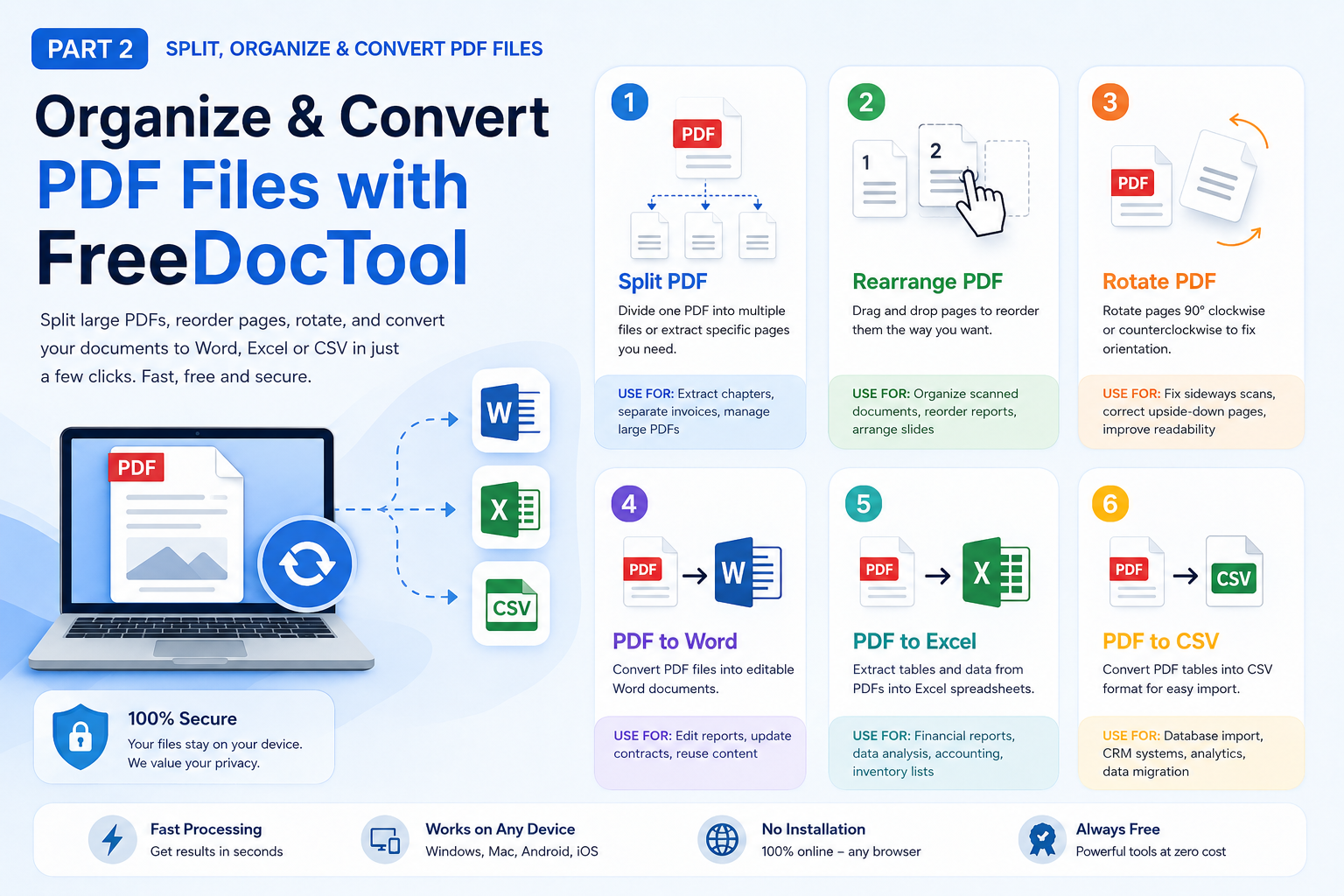
Split, Organize & Convert PDF Files with FreeDocTool
As your PDF collection grows, managing documents efficiently becomes just as important as creating them. Sometimes you need to extract only a few pages from a large report, rearrange pages into the correct order, rotate scanned documents, or convert PDF files into editable formats such as Microsoft Word, Excel, CSV, or PowerPoint.
Instead of installing bulky desktop software, FreeDocTool provides browser-based PDF tools that allow you to complete these tasks quickly and securely. Because processing happens directly on your device whenever supported, your files remain private and under your control.
In this section, we'll explore six essential PDF tools that help you organize and convert your documents more efficiently.
A PDF splitter allows you to divide one PDF document into multiple smaller files. Instead of sharing an entire document, you can extract specific pages or separate large PDFs into manageable sections.
People often search for this tool using terms such as:
Split PDF Online
PDF Splitter
Extract PDF Pages
Separate PDF Pages
Divide PDF
Split Large PDF
PDF Page Extractor
Why Use a PDF Splitter?
Large PDF documents often contain information that doesn't need to be shared with everyone. Splitting a PDF helps you send only the pages that matter while keeping the remaining pages private.
Common situations include:
Sending only one chapter of an eBook.
Extracting selected pages from a research paper.
Separating invoices into individual files.
Splitting contracts into separate agreements.
Organizing scanned documents into smaller PDFs.
How the Split PDF Tool Works
Using the Split PDF tool is simple:
Open the Split PDF page.
Select the PDF file from your computer or mobile device.
Choose whether to split by page numbers, page ranges, or individual pages.
Start the splitting process.
Review the generated files.
Download the individual PDF documents.
Best Practices
Double-check page ranges before splitting.
Keep original files as backups.
Name extracted PDFs clearly for easier organization.
Combine this tool with Merge PDF if you later need to reorganize documents.
Sometimes a PDF contains all the right pages but in the wrong order. A PDF page organizer allows you to move pages into the correct sequence without recreating the entire document.
People also search for:
Rearrange PDF Pages
Organize PDF
Reorder PDF
Move PDF Pages
Sort PDF Pages
Change PDF Page Order
Why Rearrange PDF Pages?
Whether you're preparing business reports, presentations, legal paperwork, or school assignments, page order matters. Rearranging pages makes documents easier to read and more professional.
Typical use cases include:
Correcting scanned documents.
Organizing client proposals.
Rearranging presentation slides.
Reordering contracts before signing.
Creating digital portfolios.
Step-by-Step Guide
Open the Rearrange PDF tool.
Upload your PDF.
View page thumbnails.
Drag and drop pages into the desired order.
Confirm the arrangement.
Download the updated PDF.
Pro Tip
Before sharing an important document, scroll through every page to ensure the order is correct. A well-organized PDF creates a better impression and reduces confusion.
A PDF to Word converter transforms a PDF document into an editable Microsoft Word (DOCX) file. Instead of retyping text manually, you can modify the converted document directly in Word or compatible editors.
Popular search terms include:
PDF to Word
Convert PDF to DOCX
PDF to Editable Word
Free PDF to Word Converter
PDF to Microsoft Word
Online DOCX Converter
Why Convert PDF to Word?
Editing a PDF directly can be difficult. Converting it into Word allows you to:
Update resumes.
Edit contracts.
Modify reports.
Revise school assignments.
Reuse existing content.
Correct formatting and spelling.
How the PDF to Word Tool Works
Open the PDF to Word tool.
Select your PDF document.
The browser converts the content into an editable Word file.
Review formatting, tables, and images.
Download the DOCX file.
Continue editing using Microsoft Word or another compatible editor.
Tips for Better Results
Start with high-quality PDFs whenever possible.
Review tables and images after conversion.
Save edited files as both DOCX and PDF versions if needed.
A PDF to Excel converter extracts tables and structured information from PDF files and converts them into editable Microsoft Excel spreadsheets.
People also search for:
PDF to Excel
Convert PDF to XLSX
PDF Table Extractor
PDF Spreadsheet Converter
PDF to Spreadsheet
Extract Tables from PDF
Why Convert PDF to Excel?
Businesses, accountants, researchers, and students often receive reports in PDF format that contain valuable tables. Instead of manually copying data, converting PDFs into Excel saves time and reduces errors.
Examples include:
Financial reports.
Bank statements.
Sales reports.
Survey results.
Inventory lists.
Budget sheets.
Step-by-Step Guide
Open the PDF to Excel page.
Upload your PDF.
The tool detects tables and structured data.
Convert the document into XLSX format.
Download the Excel spreadsheet.
Review formulas and formatting before further editing.
CSV (Comma-Separated Values) is a universal file format used by spreadsheet software, databases, analytics platforms, and business applications. Converting PDF tables into CSV makes it easier to import and analyze data.
People frequently search for:
PDF to CSV
Convert PDF to CSV
Export PDF Table
PDF Data Extractor
PDF Table to CSV
Extract Data from PDF
Why Use PDF to CSV?
CSV files are lightweight, compatible with nearly every spreadsheet application, and commonly used for data migration and analysis.
Professionals use this tool for:
Importing customer lists.
Analyzing business data.
Migrating inventory records.
Preparing datasets.
Working with accounting software.
Uploading data into CRM systems.
How the PDF to CSV Tool Works
Open the PDF to CSV converter.
Upload your PDF file.
The tool identifies tables and structured information.
Convert the extracted data into CSV format.
Download the CSV file.
Open it in Excel, Google Sheets, LibreOffice, or other spreadsheet software.
Professional Tip
Always review the exported CSV file to ensure columns are aligned correctly, especially if the original PDF contained merged cells or complex table layouts.
Continue Your PDF Workflow
By now you've learned how to:
Split large PDF documents into smaller files.
Rearrange pages for better organization.
Rotate incorrectly scanned pages.
Convert PDFs into editable Word documents.
Extract spreadsheet data into Excel.
Export tables into universal CSV files.
These tools work together to simplify everyday document management for students, professionals, educators, businesses, and anyone who regularly works with PDF files.
In the next section, we'll explore additional conversion and editing tools, including:
PDF to PowerPoint
PDF to Image
PDF to Text
Protect PDF
Unlock PDF
Crop PDF
You'll also learn practical use cases, optimization tips, and best practices for maintaining document quality throughout your workflow.
Convert, Protect & Optimize Your PDF Files with FreeDocTool
PDF files are trusted around the world because they preserve formatting and make document sharing simple. However, there are many situations where you need more than just viewing a PDF. You may want to turn a PDF presentation into editable PowerPoint slides, extract every image from a PDF, convert pages into high-quality JPG or PNG images, protect confidential documents with a password, remove an existing password, or crop unwanted margins before printing.
Instead of installing multiple applications, FreeDocTool provides a complete suite of browser-based PDF utilities that let you perform these tasks quickly, securely, and without uploading your files to external servers whenever supported.
In this section, you'll learn how these powerful PDF tools work, when to use them, and how they can improve your productivity.
A PDF to PowerPoint converter transforms PDF pages into editable Microsoft PowerPoint (PPTX) slides. Instead of rebuilding an entire presentation from scratch, you can continue editing existing content using PowerPoint or compatible presentation software.
People often search using:
PDF to PPT
PDF to PowerPoint
Convert PDF to PPTX
PDF Presentation Converter
PDF to Slides
Free PDF to PowerPoint
Why Convert PDF to PowerPoint?
Many reports, lectures, business proposals, and presentations are shared as PDFs. If you need to edit the content, rearrange slides, add animations, or update information, converting the PDF back into PowerPoint can save hours of manual work.
Common use cases include:
Editing business presentations.
Updating university lecture slides.
Reusing marketing presentations.
Modifying sales proposals.
Translating presentation content.
How the PDF to PowerPoint Tool Works
Open the PDF to PowerPoint tool.
Upload your PDF document.
The browser converts each page into editable PowerPoint slides.
Review text, graphics, and layout.
Download the PPTX presentation.
Edit further in Microsoft PowerPoint or compatible software.
This tool converts every page of a PDF into high-quality image files such as JPG or PNG. Each PDF page becomes a separate image that can be shared, edited, or embedded elsewhere.
Popular search terms include:
PDF to JPG
PDF to PNG
Convert PDF to Image
PDF Page to Image
PDF Screenshot Tool
Extract PDF as Images
Why Convert PDFs into Images?
Images are easier to insert into presentations, websites, blogs, and social media posts. Converting PDF pages into images also helps when a platform doesn't support PDF uploads.
People commonly use this tool for:
Website graphics.
Educational materials.
Blog illustrations.
Product manuals.
Social media sharing.
Presentation slides.
Step-by-Step Guide
Visit the PDF to Image page.
Upload your PDF.
Select your preferred image format.
Start the conversion.
Download individual images or a ZIP archive.
Best Practice
If you're planning to print the images later, choose the highest quality available to maintain sharp text and graphics.
A PDF to Text converter extracts readable text from PDF documents and saves it as a plain TXT file. This allows users to edit, search, reuse, or analyze textual content without manually copying and pasting.
Common Google searches include:
PDF to Text
Extract Text from PDF
Convert PDF to TXT
Copy PDF Text
PDF Text Extractor
PDF OCR Text
Why Use PDF to Text?
Extracting text is useful when creating summaries, editing reports, conducting research, or preparing content for blogs, websites, or documentation.
Examples include:
Copying research notes.
Editing old reports.
Reusing business content.
Creating searchable archives.
Preparing AI training data.
Writing articles based on existing documents.
How the Tool Works
Open the PDF to Text converter.
Upload your PDF.
The browser extracts readable text.
Review the extracted content.
Download the TXT file.
Helpful Tip
If the original PDF contains scanned pages instead of selectable text, OCR functionality may be required for accurate extraction.
Cropping removes unwanted margins or unnecessary outer areas from PDF pages without changing the actual document content.
People also search for:
Crop PDF
Trim PDF
Remove PDF Margins
Resize PDF Pages
Cut PDF Borders
PDF Page Cropper
Why Crop PDF Pages?
Cropping helps create cleaner-looking documents and reduces unnecessary white space.
Examples include:
Preparing PDFs for printing.
Removing scanner borders.
Focusing on important content.
Creating presentation-ready documents.
Optimizing eBooks.
How the Crop PDF Tool Works
Open the Crop PDF tool.
Upload your PDF.
Select the crop area.
Preview the result.
Apply the crop.
Download the updated PDF.
Professional Tip
Use the preview feature to ensure no important content is accidentally removed before saving.
How These PDF Tools Work Together
One of the biggest advantages of FreeDocTool is that every PDF utility complements the others. A typical workflow might look like this:
Convert a PowerPoint presentation into PDF using Create PDF.
Compress the PDF for easier sharing.
Rearrange pages if needed.
Crop unnecessary margins.
Protect the document with a password before sending.
If revisions are requested, unlock the PDF, convert it back to PowerPoint or Word, make edits, and create a new PDF.
This flexible workflow allows students, professionals, businesses, teachers, and freelancers to manage their documents efficiently without switching between multiple websites or installing expensive software.
Coming Up in Part 4
In the next section, we'll cover the remaining productivity tools that make FreeDocTool a complete document management platform, including:
PDF Page Deleter
Extract Images from PDF
Add Watermark to PDF
Add Page Numbers to PDF
eSign PDF
PDF Annotator
Image to PDF
Online Text Editor (Export to PDF & DOCX)
Text to PDF
We'll also explore practical workflows, document collaboration tips, and best practices to help you work smarter with PDFs every day.
Edit, Sign, Annotate & Enhance PDF Files Like a Professional
Managing PDF documents involves much more than converting or compressing files. In everyday work, you may need to remove unnecessary pages, extract images for presentations, add watermarks to protect intellectual property, insert page numbers for better organization, electronically sign contracts, highlight important information, or even create entirely new PDF documents from text or images.
Instead of using multiple websites or expensive desktop software, FreeDocTool brings all of these powerful PDF tools together in one browser-based platform. Since processing happens directly on your device whenever supported, your documents remain private while you enjoy fast, secure, and convenient editing.
Whether you're a student preparing assignments, a teacher reviewing projects, a lawyer handling contracts, an HR professional managing employee records, or a business owner organizing documents, these tools help simplify your workflow.
Unlike a basic text editor, this browser-based document editor allows users to write, edit, and format documents before exporting them as either PDF or Microsoft Word (DOCX).
Think of it as a lightweight online word processor that works directly in your browser.


Comments